Sync Shopify Orders, Invoices and Payments to MYOB
MYOB Sync can create MYOB sales documents from Shopify orders and
link eligible payments to them. Configure order and invoice filters
separately, select the customer strategy and payment account, and
check the exported sales document before troubleshooting a missing
payment.
Start with the business event you need to record. An order, an
invoice and a payment are separate records, with separate
prerequisites. Plus includes these flows; Pro adds payment-method
mapping and returns.
Check the current plan comparison.
For example, if your workflow calls for invoices after fulfilment
and payment, review the invoice fulfilment and financial filters
together. The order flow has its own filters: changing invoice
settings does not automatically change order settings. Choose the
document types your business actually needs.
Prepare products, customers and accounts
Complete the
initial setup and product/customer imports
first. Check SKU-to-item matching and select the required tax
codes. Decide whether each sale should use its Shopify customer or
a generic MYOB customer before configuring payments.
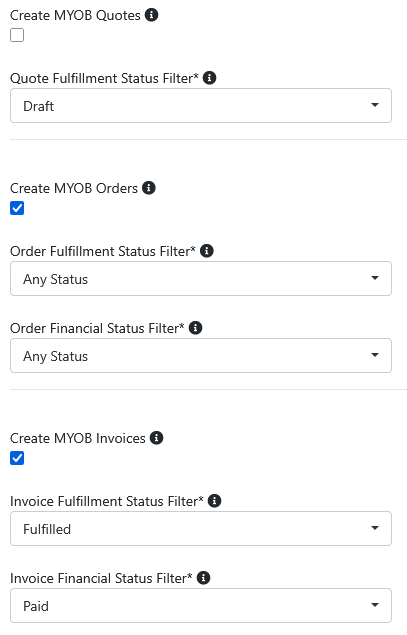
Sales-document settings from the published guide. These example
filters are not a recommendation to enable every document type.
Select the image to view it at full size.
Shopify orders to MYOB quotes, orders and invoices
Choose which sales documents MYOB Sync creates. Each process has
its own filters, so you can create an MYOB order first and convert
it to an invoice when the Shopify fulfilment or financial status
meets your chosen conditions.
Choose when to create each MYOB sales document
Document
Configuration
Quotes
Select the quote fulfilment status filter. Shopify draft
orders are available for the quote flow only.
Orders
Enable Create MYOB Orders and set fulfilment and financial
status filters. The default filters include all orders.
Invoices
Enable Create MYOB Invoices with its own fulfilment and
financial status filters. Review these separately from the
order filters.
Make the sales document fit your workflow
Customer selection
Choose From Order for the Shopify customer,
or Generic to assign all orders to a selected
MYOB customer. The From Order option requires the customer
flow and initial customer sync. Set a fallback customer for
missing email addresses or unmatched records.
Numbering and reference fields
Use the Shopify order ID as the MYOB number, or keep MYOB’s
sequential numbering. You can add a custom order prefix and
copy Shopify order notes into the MYOB comment.
Delivery, dates and tax
Set the time zone, delivery status (Print, Email,
PrintAndEmail or Nothing), optional MYOB category and
tax-inclusive setting. You can also include the customer’s
name in the shipping details.
Lines without a SKU
For item-based orders, MYOB needs an item for each line. Enter
a default MYOB item number in
No SKU Order Lines for Shopify lines that do
not have a SKU.
Default order line location
Select a default MYOB location for order lines. If none is
selected, the first MYOB location is used. Multiple location
mapping overrides this default.
Service layout
If you do not keep stock in MYOB, the optional service layout
uses a selected account instead of product items. Your company
file must support the hybrid services-and-items layout.
Check your starting point.
The published guide describes an initial import of the last day
of Shopify orders, followed by new orders. Failed quote, order
and invoice exports retry for a default seven days. Contact
support if you need historical orders outside that window.
Create customer cards or use a generic customer
Enable
Create Missing Customer Cards for New Orders to
create a MYOB customer card when a new Shopify customer places an
order. This supports the From Order customer
choice in sales settings.
Run the initial customer sync before starting. If you prefer not
to create individual customer cards, choose
Generic in the order settings and select an
existing MYOB customer. For orders with no usable email address, a
fallback customer can prevent an unmatched customer from blocking
the export.
Sync Shopify payments to MYOB
Enable Create Payments and select the MYOB
account that will receive the payments. The payment record
includes the customer, date, amount, payment method, receipt
number and account.
Link to invoices or orders: payments link to
MYOB invoices by default. If Create MYOB Orders is enabled, you
can select the option to link payments to MYOB orders and
invoices.
Choose payment statuses: the default filter
includes successful payments. The settings also allow pending
payments, so review the filter before changing it.
Map payment methods on Pro: assign Shopify
payment methods to individual MYOB accounts. Without method
mapping, payments go to one selected account.
Before investigating a missing payment, check that its order or
invoice was exported successfully. The customer on the payment
must match the customer on the MYOB sales document.
Handle Shopify returns and refunds in MYOB
The return flow creates an MYOB credit note as a negative invoice
entry with a credit balance. Find it under
Returns & Credits in the MYOB desktop app or
Customer returns in the web app.
Return references use an -R suffix to distinguish
them from the original sale. If MYOB sequential numbering is used,
the suffix applies to the purchase order reference rather than the
generated invoice number.
The refund flow creates a credit refund when a Shopify transaction
is marked refunded. The invoice or return credit note must have a
credit balance before the refund can be applied. A
Refund Returns Only option is available through
support if you want refunds applied only to returns instead of
both invoices and returns.
Check your configuration
Find a Shopify order that meets the configured financial and
fulfilment filters.
Check the MYOB sales document, customer, line items and tax
settings after the export.
Confirm that an eligible payment uses the same customer as the
MYOB order or invoice.
If payment-method mapping is enabled, check its destination
account as well as the default account.
For a timeout or uncertain result, check whether MYOB already
created the record before retrying.
 my
my