MYOB Sync sends inventory quantities from MYOB to Shopify. Match
each Shopify variant SKU to its MYOB item number, choose the
quantity source and destination location, and enable the inventory
flow. Multiple-location mapping is included on Pro.
Shopify SKUs and MYOB item numbers must match exactly, including
capitalisation. A Shopify variant is a separate item for matching
purposes. For example, a variant with SKU
TEE-BLUE-M needs the same item number in MYOB;
matching only the parent product name is insufficient.
Run Sync Products in the app to import existing
records and refresh the match. This initial import does not create
products in Shopify or MYOB.
Product creation is a separate option, so leave it off if you manage your catalogue manually.
Choose the inventory plan and direction
Free provides manual inventory syncing; paid Shopify plans support
scheduled runs every 15 minutes. Pro includes multiple inventory
locations. This workflow sends MYOB stock to Shopify; it is not a
promise of instant updates or inventory synchronisation in both
directions.
Decide which MYOB quantity field should represent sellable stock
and which Shopify location should receive it. Review the location
mapping as well as the total quantity: the right amount sent to
the wrong location can still cause fulfilment problems.
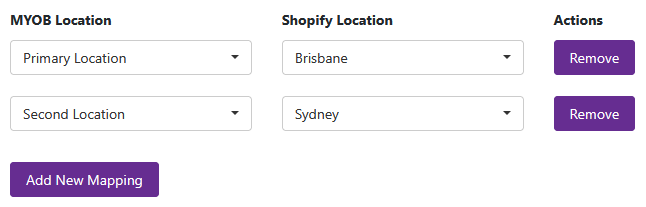
Example location mappings from the published guide. Map your own
locations before enabling the flow. Select the image to view it at
full size.
Sync MYOB stock levels to Shopify locations
Enable Sync Inventory from MYOB to send MYOB
stock quantities to Shopify. Decide whether you want a combined
total in one Shopify location or individual location mappings.
ONE STORE LOCATION
Total MYOB locations
Choose the destination Shopify location and the app product
group, which defaults to MYOB AccountRight. Select the MYOB
quantity type: Available Quantity,
Quantity on Hand or
Quantity Committed.
MULTIPLE LOCATIONS · PRO
Map locations individually
Enable Use Multiple Locations and match MYOB
locations to Shopify locations. You can select individual
locations or map all of them. This flow uses
Quantity on Hand at each MYOB location.
Location mapping takes priority.
Multiple Location Mapping overrides the Total MYOB Locations
settings and the default order line location. Review both
inventory and order behaviour when you change mappings.
For stock that is not updating, first check SKU matching,
inventory tracking on the Shopify variant, the destination
location and the most recent sync log.
Check your configuration
Select one known SKU and compare its MYOB item number with the
Shopify variant SKU.
Check the source quantity field and MYOB location, then the
mapped Shopify location.
Confirm that the inventory flow is enabled and the integration
is running on the intended schedule.
Review the sync log for that SKU if the destination quantity
differs from the expected value.
Contact support with the SKU, locations, run time and error text
if the mismatch remains.
 my
my